Lab note
Building DataViews.pro: An SFMC Data Views Reference I Made with Cursor

SFMC architect · technical writer · 7 min read
- SFMC Data Views
- Salesforce Marketing Cloud
- Cursor
- SQL
- Automation Studio
A few months ago I started AI Coder: Complete Claude Code & Coding Agents Course on Udemy, taught by Ed Conner. Early on, he demoed Cursor — and that was enough for me to pause the course and start experimenting on my own.
I tried a few different project ideas first. In the end, the one that made sense was the work I already do every day in Salesforce Marketing Cloud (SFMC): system data views. They sit behind almost every Query Activity and Automation Studio script I write. They are also the part of SFMC I have never quite felt on solid ground with.
That project is live today as DataViews.pro.
Data views were never my strong suit
I have always found SFMC data views hard to read correctly.
On paper they are straightforward system tables — _Subscribers, _Sent, _Open, _Click, _Job, and many more. In a real project, the details pile up fast: which field belongs to which view, which keys actually join, when you need Ent. in a child business unit, and why SQL that looked fine in a draft behaves differently inside a Query Activity.
Over the years, two references have helped me more than anything else — and I still go back to them:
- dataviews.io — my first stop when I need to look up fields or see how views connect.
- Mateusz Dąbrowski's system data views documentation — clear, thorough writing on SFMC system data views, joins, and SQL patterns.
What DataViews.pro is
DataViews.pro is an interactive data views reference and SQL workspace for SFMC. In the app it also goes by SFMC Schema Architect.
It does not plug into your Marketing Cloud account or run queries against your data. You use it to explore schemas, map relationships, and draft SQL — then copy the result into Query Studio or Automation Studio when you are ready.
Here is what is in it today:
- A schema canvas for core system data views, SendLog layout, and synchronized CRM DE shapes
- Relationship highlighting when you hover join-related fields
- A SQL Sandbox with automatic join paths and utility filters
- Starter query templates for common reporting and list-hygiene work
- An AI Copilot (free account, daily limits) that sees your canvas selection and whatever is already in the sandbox editor
The site is in public beta. Browsing and SQL generation are free; the copilot requires sign-in.
How I use it
The flow is deliberately simple:
Browse data views → select cards on the canvas → open the SQL Sandbox → copy SQL into Marketing Cloud
Pick a segment
The toolbar divides the canvas into three areas:
| Segment | What it covers |
|---|---|
| Core | System data views — subscribers, sending, tracking, journeys, SMS, mobile push, automations, social, and more |
| SendLog | SendLog-style fields (JobID, ListID, BatchID, SubKey, triggered-send attribution) |
| Sync CRM | Synchronized Account, Contact, and Lead shapes from Salesforce CRM |
Search and read fields
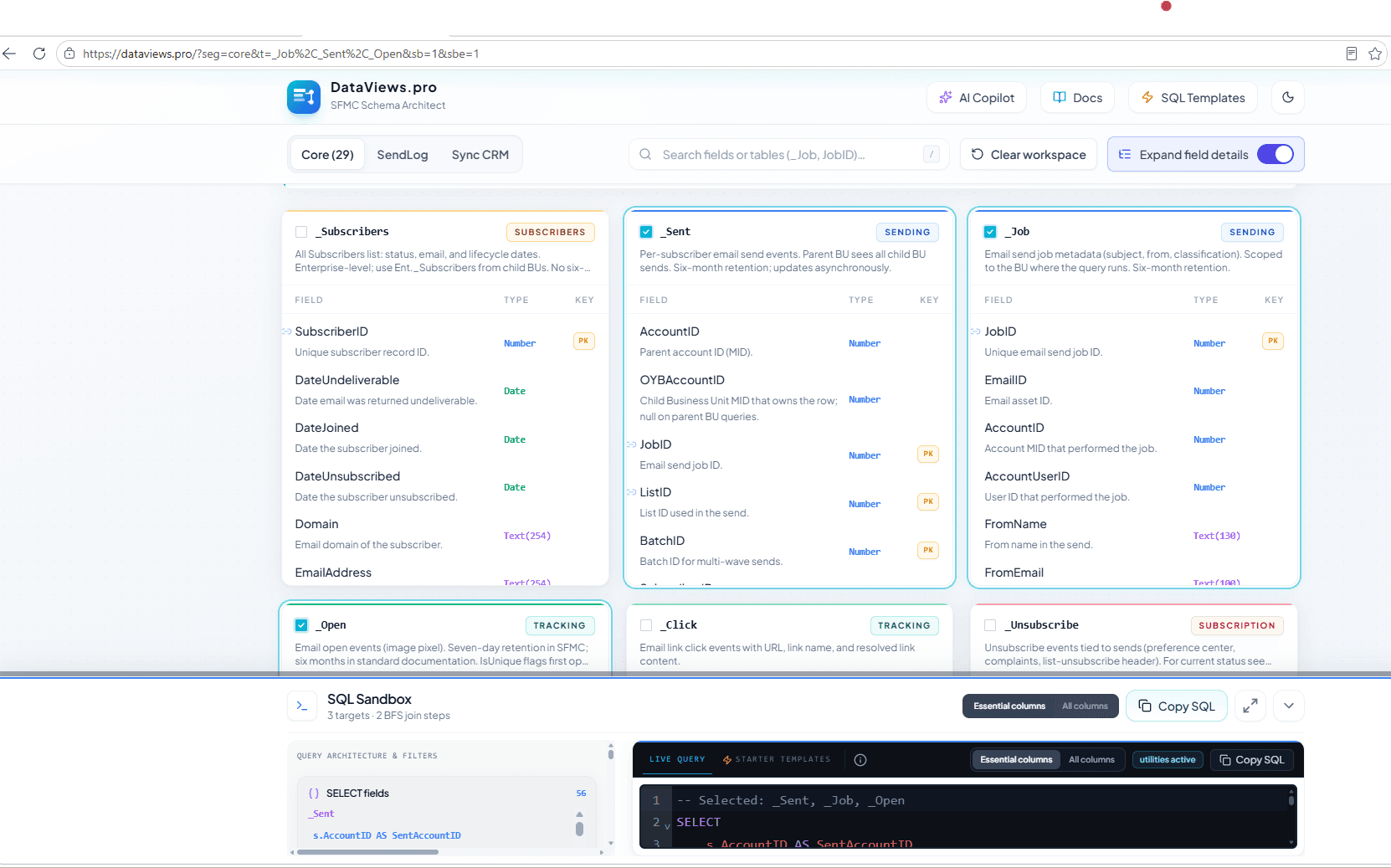
Press / to focus search, then type a table or field name — JobID, SubscriberKey, _Bounce, or whatever you are looking for. Matching cards stay visible; the rest fade back.
I usually enable Expand Field Details when I am building a SELECT list and want descriptions and datatype badges on each row.
Trace joins on the canvas
Hover a field with join metadata and related tables highlight across the grid. It is especially handy when you are wiring together more than two views.
Select tables and open the sandbox
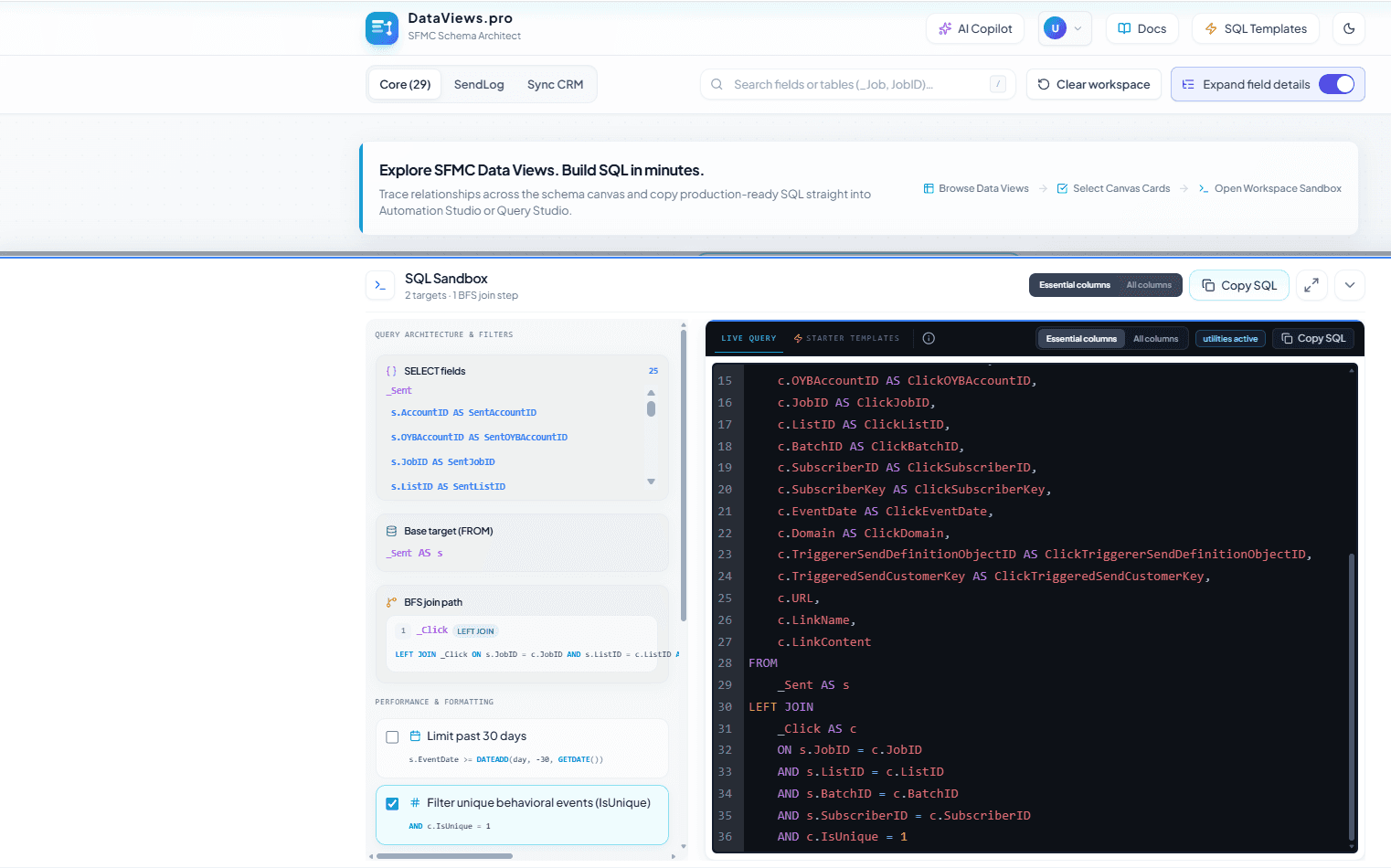
Check the views you need, then open the SQL Sandbox. A BFS join pathfinder connects your selection using familiar SFMC rules:
- Tracking views joined on send grain (
JobID,ListID,BatchID,SubscriberID) _Jobjoined onJobIDonly- LEFT JOIN by default, so driving send rows are kept when optional data is missing
- Bridge tables added when two selected views do not share a direct key — you only select what matters; the engine supplies the rest
Adjust filters, edit, copy out
Use the sidebar utilities (below), tweak the query in the editor if you want, and paste it into Marketing Cloud.
Features in more detail
Schema canvas
Each data view appears as a card with its category — Sending, Tracking, Journey, Subscribers, Mobile, Automation, and so on. Views like _Subscribers, _Sent, _Job, _Open, and _Click are near the top so you are not scrolling endlessly.
Each card lists fields, types, and join paths where we have modeled them.
SQL Sandbox
The sandbox is more than an editor:
- Live Query — SQL from your current selection and toggles
- Starter Templates — nine ready-made patterns (hard bounces, ghost subscribers, automation failures, SMS failures, journey unsubscribes, and more)
- BFS join path — each LEFT JOIN with its ON conditions spelled out
- Bridge labels — when the pathfinder adds a table you did not select
- Disconnected warnings — when two views cannot be joined, you know before copying broken SQL
Utilities I reach for most
| Utility | What it does |
|---|---|
| Limit past 30 days | Adds an EventDate lookback when the graph supports it |
| Filter unique behavioral events | IsUnique = 1 where the view supports it (not _Sent) |
| Exclude test send records | Drops rows with TestStormObjID populated |
| SQL keyword case | Uppercase or lowercase — your choice before paste |
| Compact SELECT | Essential columns per view instead of the full schema |
| Automation Target Header | Target DE scaffolding for Query Activities |
Business filters:
- Active subscribers only
- Filter by Job ID for a specific send
If a tracking-heavy query is missing a recommended date lookback, you get a warning. You can still proceed, or turn on the 30-day filter in one click.
Starter templates
Built-in examples include:
- Recent hard bounces
- Unengaged subscribers (many sends, no opens)
- Recent automation failures
- High-friction unsubscribes
- Held status with last bounce reason
- Spam complaints by Job ID
- SMS outbound failures
- Non-openers for a specific Job ID
- Journey unsubscribe audit
Placeholders like YOUR_JOB_ID_HERE can be filled in a parameter panel before the SQL drops into the editor.
AI Copilot
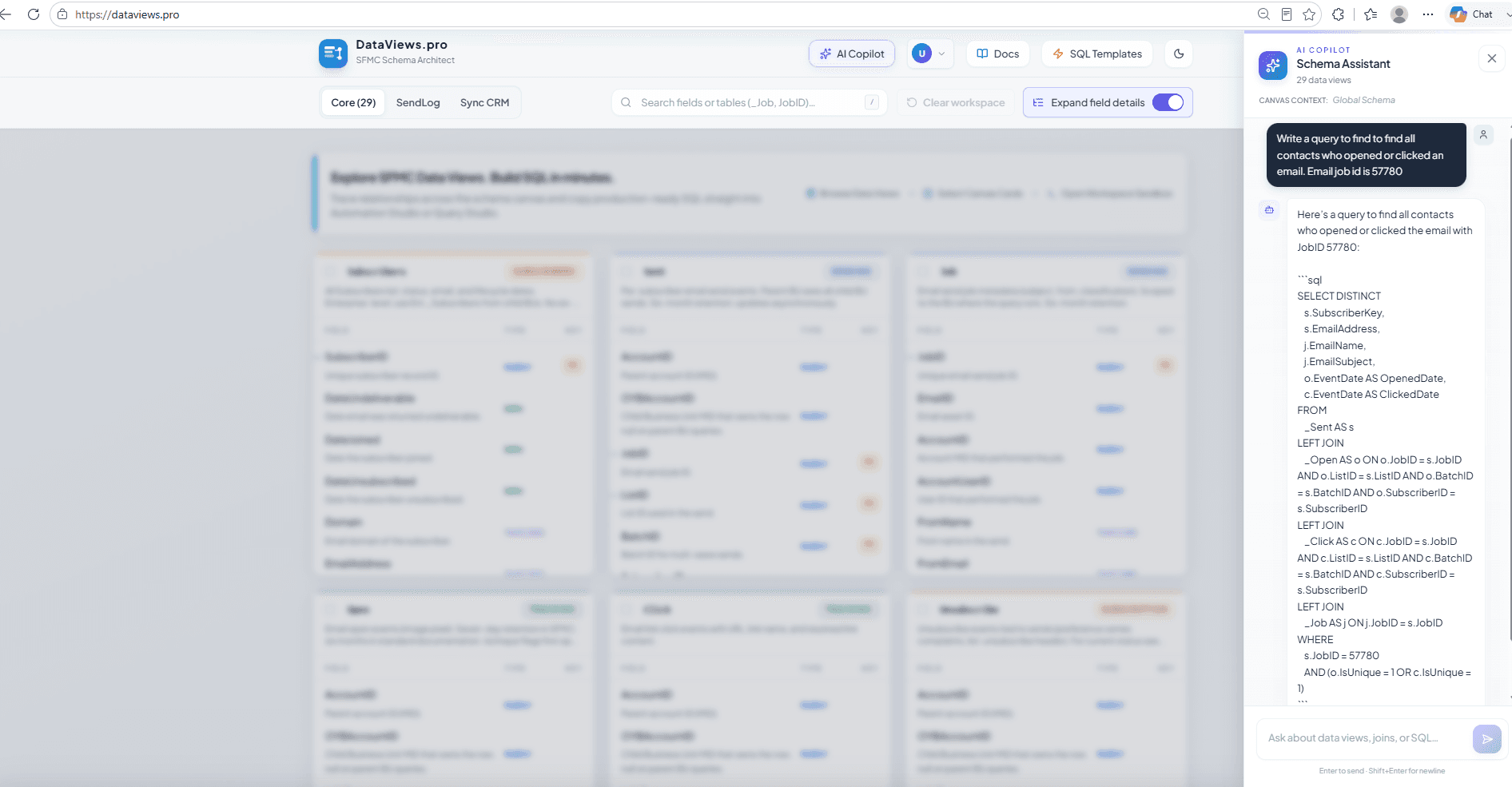
The copilot reads your canvas selection and current sandbox SQL. Ask it to explain a relationship, suggest a join, or draft a query — then push the result into the editor to refine.
- Free account (email sign-in)
- 5 AI queries per day per user (UTC reset)
- Streaming replies; SQL in code fences can be applied to the sandbox in one click
A few other details
- Dark and light theme
- Workspace state saved in your browser (selections, sandbox size, preferences)
- In-app guide and keyboard shortcuts (
/for search, among others) - Static
/views/pages per data view for search and reference - Comments in generated SQL for child BU patterns such as
Ent._Subscribers
Building it with Cursor
I did not ship this in a single marathon session. Cursor made it easier to work in layers: schema files grouped by domain (tracking, journeys, mobile, and so on), a join engine with SFMC-specific rules, a CodeMirror editor with completions from the active schema, a streaming copilot API, and deployment on Vercel.
Who it is for
- SFMC developers and architects writing Query Activities
- Marketing ops and analysts pulling tracking data together
- Consultants in a new Business Unit who need a quick map of system views
If Query Studio is already part of your routine, DataViews.pro is meant to sit alongside it — plan and draft here, run the query in your tenant.
Try it
Live app: https://dataviews.pro/
If it helps you finish a bounce report, a journey audit, or a query you have been putting off, I would like to hear how it went.
I also list DataViews.pro in Useful Tools for SFMC Professionals. This post is the longer walkthrough — what it is, how it works, and how to get the most from it.
Stay updated
Get new posts by email
SFMC how-tos, build stories, and architecture notes—delivered when they publish. RSS works too, but most people prefer email.
One email when a post goes live. Unsubscribe anytime.